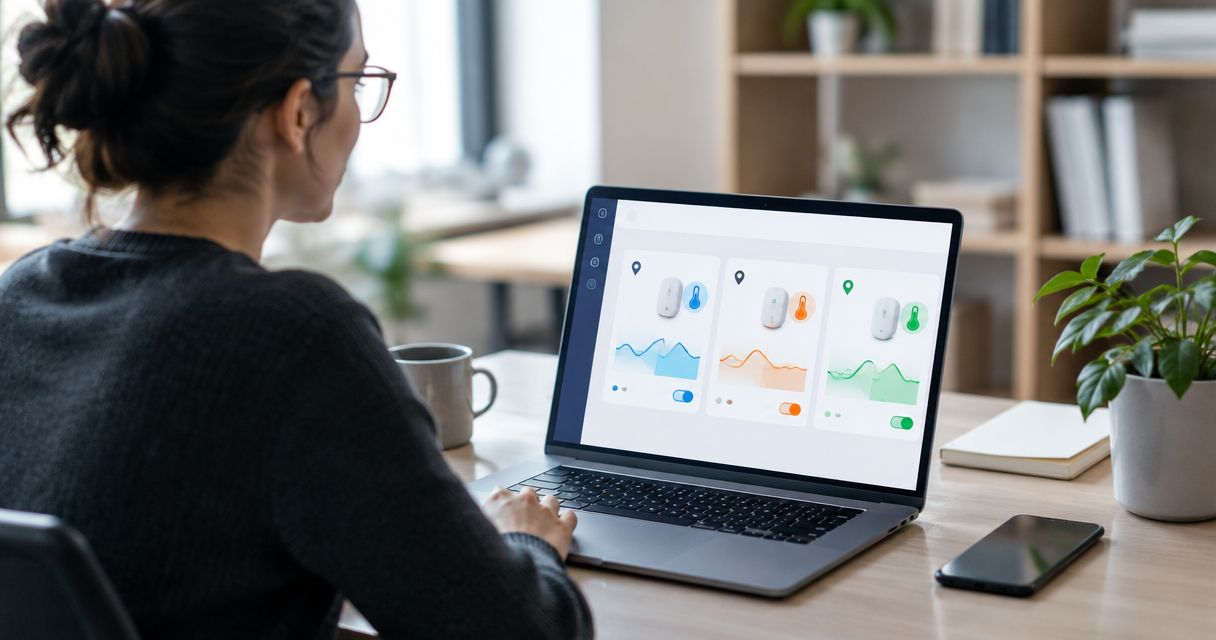
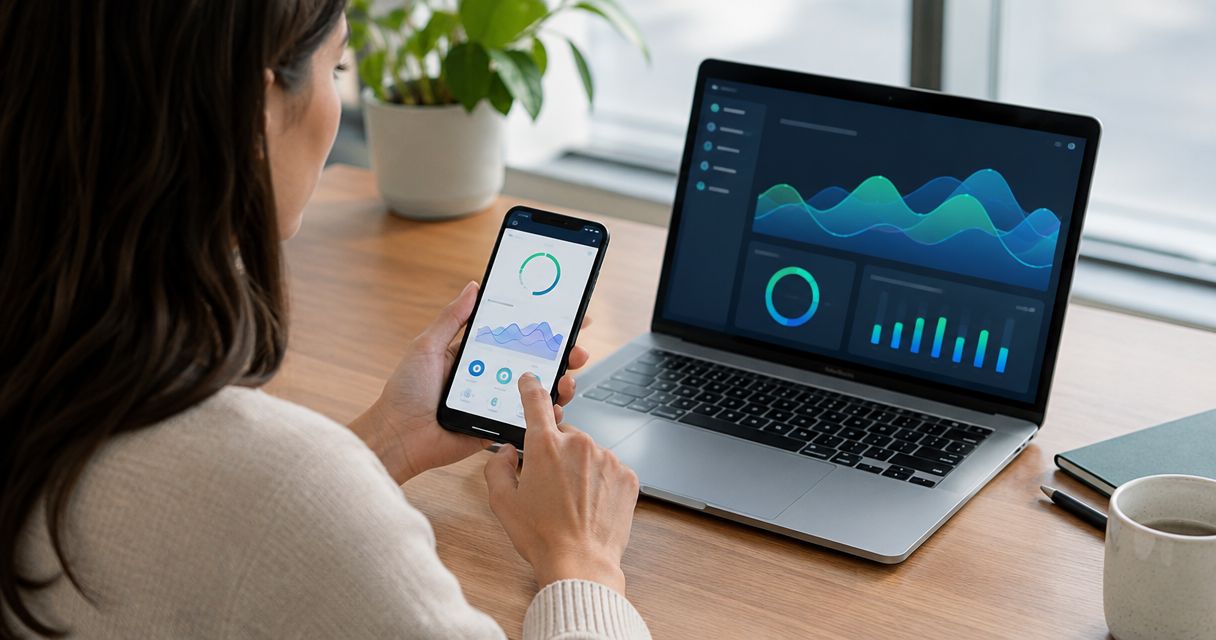
Instead of manually checking device readings and copying them into a separate tool, build a mobile app that retrieves data from the Kilo IoT Platform through a server-side REST integration. Keep platform credentials on your server, authorize each app user there, and return the readings, units and timestamps the mobile screen needs.
- For a kilo rest api mobile app, use a backend to protect credentials and enforce device access.
- Kilo suits developers building custom mobile experiences around connected-device data; the app still needs its own implementation.
- Confirm authentication, readable resources and response fields against the current API reference before coding.
- Show measurement timestamps and stale-data states; a successful request does not prove a fresh sensor reading.
Separate the mobile experience from platform access
A custom mobile app gives you control over navigation, branding and task-specific screens. That flexibility also makes your team responsible for application login, authorization, caching, error handling and release maintenance. Platform dashboards and a custom application are different deliverables.
Use Kilo as the IoT data layer, not as a substitute for the mobile application's security and interaction design. Start with a read-only screen that answers a concrete question: which equipment is this, what was its latest reported measurement, and when was that measurement taken?
REST is an HTTP-based request-and-response interface. Your integration requests a documented resource and processes the response; it does not automatically create a continuous subscription to sensor updates. Refresh behavior belongs in your application design unless you separately implement a supported event mechanism.
This guide covers the mobile architecture and implementation sequence. Copy endpoint paths, authentication requirements and actual response fields from the current API reference, rather than treating the illustrative application labels below as platform field names.
Before you start
- Platform access and a known device: Have an account with the required access, a device already reporting data, and permission to integrate. Confirm the current REST reference covers the device metadata and measurements your screen requires.
- A mobile project and a backend: Prepare your app project, an HTTPS backend, server-side secret storage and an application login mechanism. Keep development credentials and production credentials separate.
- A verified data contract: Record the documented authentication method, resource identifiers, response structure, timestamp meaning and request limits. The non-obvious gotcha is that a successful HTTP response can contain an old reading: request completion and measurement freshness are different facts.
You don't need to buy new sensors to build the application if suitable devices already supply the required data. For separate hardware sourcing, Kilo Electronics is an online authorised dealer serving individual and business buyers; it is distinct from the platform software.
Backend access configuration
Choose where platform requests run
Put privileged platform access behind your backend. A distributed mobile application is not a suitable place to hide a shared service credential. Obfuscating a secret in the app package does not make that secret private.
| Architecture | Best for | Advantage | Limitation |
|---|---|---|---|
| Server-mediated access | Apps using privileged platform credentials | Central authorization, secret handling and response shaping | Requires a backend to operate and maintain |
| Direct mobile access | APIs with an explicitly supported public-client authentication flow | Removes the intermediary request layer | Requires documented user-scoped authentication; never embed a shared secret |
The direct-access option is an architectural alternative, not a claim that a particular authentication flow is supported by this platform. Use it only when the current reference explicitly supports the intended mobile-client model.
Establish the first read-only request
- Identify the documented read operation that returns the information needed for your first screen. Check whether metadata and measurements require separate requests.
- Configure the documented authentication mechanism in your backend's HTTP client. Load credentials from server-side secret storage, not source code or mobile configuration files.
- Make the request from a development environment using a known device identifier. Inspect the response without writing credentials or sensitive payloads to logs.
- Record the actual fields for identity, measurement, unit and time. Distinguish absent fields from explicit null values.
- Revoke or replace the development credential and confirm that the integration handles the resulting authentication failure without exposing sensitive details.
Expected result: Your backend retrieves a known device's permitted data using the documented interface, while the mobile application contains no platform credential.
Device access and response configuration
Authorize the user before requesting device data
Your backend needs to answer two separate questions: is this person signed in, and is this person allowed to read this device? A valid application session answers only the first.
- Map each authenticated app user to the sites or devices they are allowed to access. Keep this mapping server-side or derive it from a verified authorization source.
- Validate every incoming device selection against that mapping before fetching or returning readings. Never accept an arbitrary device identifier simply because the mobile app supplied it.
- Limit backend credentials to the access required by the integration, using the platform's documented permission model.
- Test with an allowed device and a device outside the user's scope. Repeat the test after changing the user's access.
Expected result: Changing an identifier in a request cannot reveal another site's device data. Removing access takes effect according to your application's documented session and cache behavior.
Shape a stable response for the app
Don't make every mobile screen understand the full upstream response. Translate the documented fields into an application-owned model, preserving enough context to interpret each reading correctly.
Useful application labels include Device identity, Measurement, Unit, Measured at and Retrieved at. These are proposed labels for your own response model, not asserted API field names.
- Map the upstream device identifier and human-readable name into Device identity. Use the identifier for lookups; names can change.
- Map the selected value into Measurement, preserving its type. A missing reading is not a numerical zero.
- Carry Unit with the value. Convert units only when you know the source unit and have defined the conversion.
- Populate Measured at from a documented measurement timestamp. Populate Retrieved at from your backend's retrieval time; never silently substitute one for the other.
- Return an explicit unavailable state when a required field is missing, rather than presenting an incomplete reading as current.
Expected result: The mobile screen receives a small, predictable response with clear measurement meaning and time provenance.
Mobile screen and refresh configuration
Build explicit loading, current and stale states
A useful device card needs more than a large number. It needs to explain whether the number is available, when it was measured and whether the app has successfully refreshed.
- Fetch through your backend after application login and device authorization. Cancel obsolete requests when the user changes devices.
- Render distinct loading, available, empty and error states. Preserve the distinction between a device with no readings and a request that failed.
- Display the measurement timestamp beside the value. Use an unambiguous timezone presentation for users working across sites.
- Add a manual refresh action. Treat its visible label as your own design choice, not a prescribed platform button.
- Keep the last successful reading during a temporary connection failure, but mark it as cached or stale. Don't refresh its measurement timestamp just because the screen reopened.
Expected result: Users can distinguish a current response, an old measurement, a missing value and an offline phone without interpreting developer error messages.
Match refresh behavior to the task
Choose a refresh interval from the device's reporting behavior, the user task and documented API limits. Repeated requests cannot make a battery-powered sensor take a new measurement unless a separate supported mechanism requests one.
For an illustrative application configuration, assume a sensor reports every 5 minutes and your app requests updates every 60 seconds. The app can receive the same measurement repeatedly between sensor reports; the extra requests do not create fresher physical observations. These are design assumptions, not platform limits or recommended monitoring thresholds.
Pause unnecessary refreshes when the screen is no longer active, and refresh deliberately when it becomes active again. Mobile operating systems constrain background work, so don't design a critical monitoring process around an assumption that the phone will poll continuously.
End-to-end verification configuration
Test the complete reading path
The integration path is Device data, Backend access, Access check, Mobile display and Freshness check. Verify every stage rather than stopping when the first request succeeds.
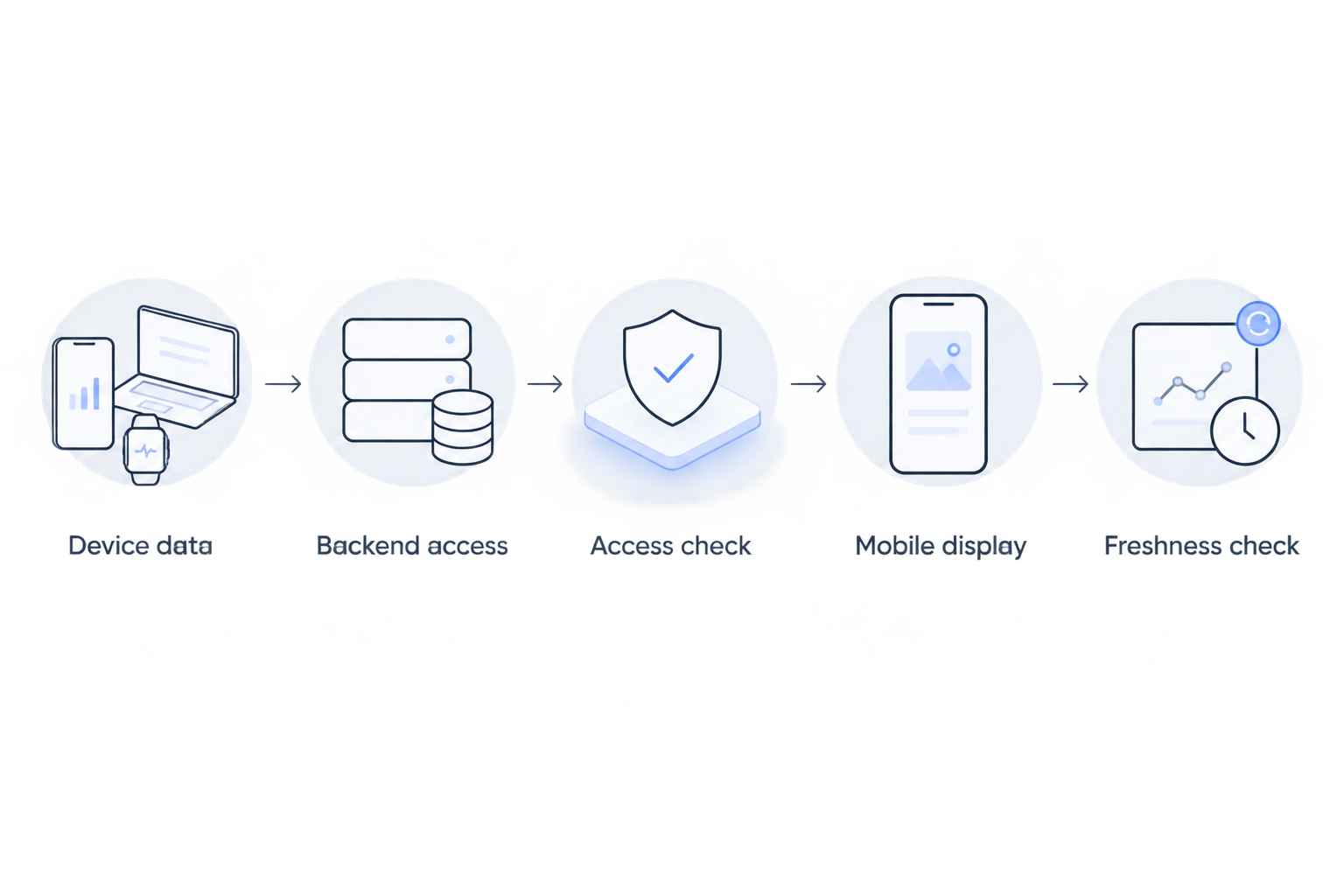
- Compare the app's displayed value, unit and measurement timestamp with the same device data available to your authorized platform user.
- Generate a controlled test measurement where practical. Confirm that the new observation appears without confusing it with a cached response.
- Disconnect the phone, reopen the screen and restore connectivity. Check the transitions between cached, loading and refreshed states.
- Request a device outside the user's scope and verify rejection before data is returned.
- Inspect logs and crash reports for credentials, personal information and unnecessary device payloads.
Expected result: You have evidence that the app displays the correct device's data, enforces access and reports connection or freshness problems honestly.
Keep this initial release read-only. Adding a command button creates a different workflow, with action-specific authorization, duplicate-request handling and physical-outcome verification to design.
Refresh the device view when the app resumes
A useful second workflow updates the selected device when a user returns to the application. It complements manual refresh without claiming that the app receives every sensor event in the background.
- Detect the mobile framework's foreground or resume lifecycle event.
- Check that the application session remains valid and the selected device is still authorized.
- Start a new backend request, while preventing duplicate requests from overlapping lifecycle events.
- Replace cached data only when the response belongs to the currently selected device. Discard a delayed response for a previous selection.
- Preserve the previous reading if refresh fails, together with a visible stale-data or connection message.
Expected result: Returning users see a deliberate refresh attempt instead of a screen that silently presents yesterday's cached value as newly retrieved.
This workflow does not require push notifications. If you later add server-originated events and mobile push, verify the event source separately and recheck access when the user opens the notification; a notification payload should not become an authorization shortcut.
Troubleshoot REST requests and mobile readings
- Authentication or access fails: HTTP 401 indicates missing or invalid authentication; HTTP 403 indicates the server refuses access. Inspect the documented authentication setup, credential validity and resource permissions. Do not solve access failures by broadening every user's permissions.
- The device appears, but its reading is empty: Check the selected measurement, payload mapping and documented response shape. Handle null, missing and non-numeric values explicitly rather than converting all of them to zero.
- The number never changes: Compare measurement timestamps across requests. Check whether the sensor has reported again, whether your backend is returning cached data, and whether the app is applying the newest response.
- Requests receive HTTP 429: The server is rate-limiting requests. Honor Retry-After when supplied, reduce repeated requests and use delayed retries rather than an immediate retry loop.
- The wrong device flashes after switching screens: An earlier request is completing after a later selection. Cancel superseded work or associate each response with its requested device before updating the screen.
Customize the app around the user's next decision
Once the first reading works, expand according to the task rather than reproducing every platform screen. A maintenance technician might need equipment identity and a recent measurement; a facilities user might need a site-filtered list. These are illustrative application designs, not claims of prebuilt mobile templates.
Add historical charts only after confirming the documented history operations, time filtering, pagination and aggregation behavior. Apply the same server-side authorization to chart requests as to the latest reading, and label gaps instead of drawing an uninterrupted line through missing observations.
For Kilo integrations that later include supported device commands, distinguish command acceptance from physical success. A delivered request is not proof that equipment changed state; verification depends on device feedback or subsequent measurements where supported.
FAQ
Can I build a custom mobile app using Kilo device data?
You can design a custom mobile app around the platform's supported API access. Confirm that the current REST reference exposes the resources, authentication method and measurements your application requires before implementing the integration.
Should my mobile app contain the platform API credential?
Do not embed a shared privileged platform credential in a distributed mobile application. Keep it on your backend and authorize each user's access before returning device data.
Does a REST request give my app real-time sensor updates?
A REST request returns a response; it does not by itself establish a continuous sensor subscription. Measurement freshness depends on device reporting, platform processing and your application's refresh behavior.
Can the app show readings without an internet connection?
Your app can display previously cached readings if you implement local storage. Label those readings as cached and preserve their original measurement timestamps; offline display does not provide new observations.
Do I need new hardware to develop the mobile app?
You don't need new hardware when existing connected devices already provide the required data. Additional measurements require suitable devices and a supported integration path, separate from mobile development.
Can I add remote control after building the monitoring screen?
Add remote control only through a documented supported command path with appropriate permissions. Design confirmation and outcome feedback for the custom app; do not assume another interface's approval behavior automatically applies to REST requests.
Keep the measurement time beside the value
A freshly loaded screen can still contain an old physical observation. Make measurement time part of the primary display, not a detail hidden behind another tap. That small design decision helps users judge what the device actually reported instead of trusting the animation of a successful refresh.
Related guides
Written by Tim Kravchunovsky