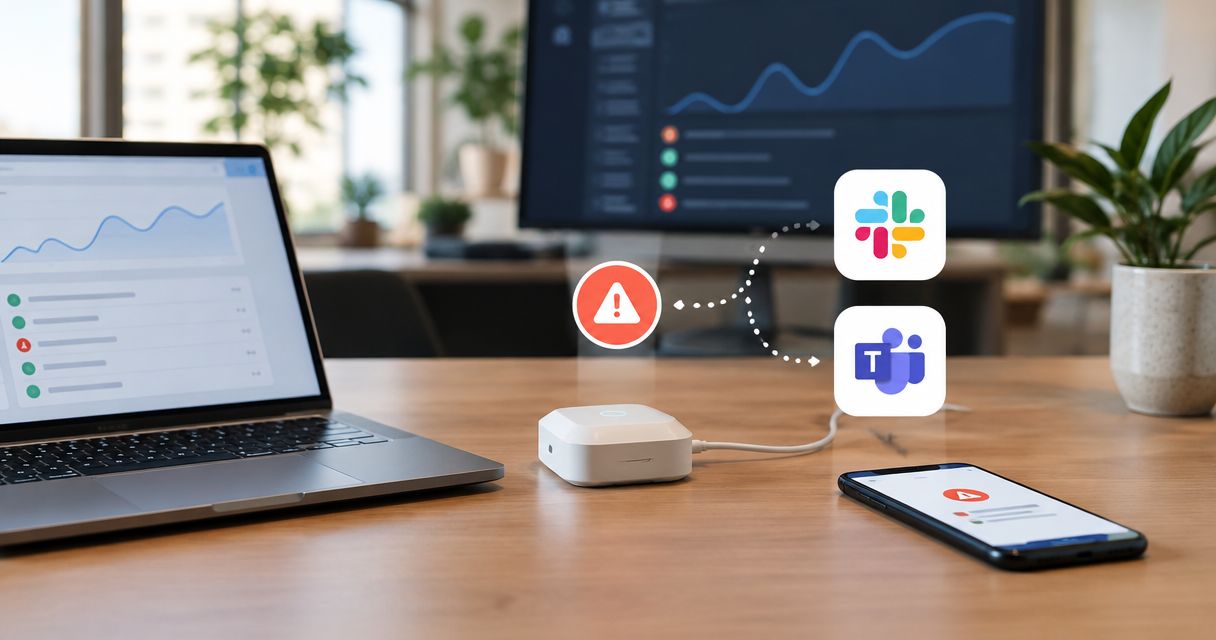
Instead of copying alarms from the Kilo IoT Platform into chat, connect a documented alarm-event output to a webhook receiver that formats and posts each relevant event to Slack or Microsoft Teams. The essential setup is an authorized event source, a destination-specific message payload, and an end-to-end test—not simply pasting a channel URL into an arbitrary field.
- To send IoT alarms to Slack or Teams, connect an authorized alarm-event source to a compatible webhook receiver.
- Slack incoming webhooks accept message payloads; Microsoft Teams Workflows require the payload expected by the configured flow.
- Kilo keeps device context and alarms together; chat delivery does not establish acknowledgment or a resolved physical condition.
- Use a relay when payload conversion, authentication, duplicate handling, or delivery tracking requires it.
How an IoT alarm becomes a channel message
A webhook is an HTTP request sent when something happens. For this workflow, the event is an alarm, and the destination is a receiver that turns the event into a channel message. The receiver might accept the source payload directly, or it might need an intermediate service to translate it.
Kilo is a useful fit for IoT builders who need device context and alarms in the same platform. Slack and Microsoft Teams serve a different purpose: bringing the event into a conversation where someone can respond. Keep that boundary clear throughout the integration.
Use the alarm record as the reference for the condition. A chat message is a notification, not proof that someone inspected the equipment, acknowledged the alarm in the platform, or corrected the problem.
Before you start
- Source access: Have permission to inspect the alarm and configure its documented integration path. Establish whether your deployment exposes an alarm-event output, a configured outbound HTTP action, or an API suitable for an integration service. Do not assume a native Slack or Teams connector exists.
- Destination access: Have permission to authorize a Slack app with incoming webhooks, or create a Microsoft Teams workflow that receives webhook requests and posts to the intended channel. Tenant and workspace policies can restrict those actions.
- The important gotcha: Confirm the receiver's authentication and payload requirements before wiring up the sender. A Slack message body is not automatically valid for a Teams workflow, and a receiver requiring an authentication method the sender cannot provide needs a compatible intermediary.
Use a non-production channel for setup. Keep webhook URLs out of screenshots, shared documents, source control, and public issue reports; possession of a webhook URL can grant the ability to submit messages, depending on the receiver's authentication configuration.
Slack or Microsoft Teams: choose the receiving workflow
Choose the chat system your responders already monitor, then design around its receiving interface. Neither destination fixes an incomplete alarm payload or an undefined response process.
| Destination | Best for | Useful capability | Limitation to plan around |
|---|---|---|---|
| Slack incoming webhook | Teams already coordinating incidents in Slack | Accepts a JSON message containing a text field | Requires an authorized app and a payload that follows Slack's message format |
| Microsoft Teams Workflows | Organizations coordinating responses in Teams | Receives a webhook request and runs configured posting actions | Authentication, message mapping, connections, and workflow ownership need explicit configuration |
For Slack, start with a plain message before adding structured formatting. For Teams, start with a simple receiving workflow and explicitly map the incoming event into the posting action. Complex presentation makes a broken transport harder to diagnose.
Slack receiver
- Open the Slack app configuration for an app you are authorized to manage. Select Incoming Webhooks and enable Activate Incoming Webhooks.
- Select Add New Webhook to Workspace, choose the intended channel, and select Allow. Workspace approval policies still apply.
- Store the generated webhook URL as a secret in the sending service or relay. Do not paste the URL into the message itself.
- Send a minimal JSON request containing
textto the webhook with theContent-Typeheader set toapplication/json.
Expected result: A plain test message appears in the selected Slack channel. This proves the receiver works; it does not yet prove that an alarm event reaches it.
Microsoft Teams receiver
- Open Workflows in Teams and create a workflow using When a Teams webhook request is received as its trigger. Your organization's policies determine access to workflow creation.
- Configure the trigger's permitted callers. Match that authentication requirement to the actual sending service rather than weakening access merely to make a test pass.
- Add a Teams posting action, select the destination, and map the incoming content into the message or card format required by that action.
- Save the workflow, protect its generated endpoint, and submit a test request matching the trigger's expected input.
Expected result: The workflow receives the request and its posting action creates a message in the intended channel. Inspect the workflow run if the request arrives but the message does not.
Alarm source and message mapping
The source configuration is the point where a generic webhook tutorial becomes a deployment-specific integration. Use the documented integration mechanism exposed by your deployment; do not invent an endpoint, event subscription, or Rules Engine node from the desired outcome.
Source connection
- Identify the documented way to obtain the relevant alarm event. If no suitable event output is exposed, establish a supported API-based integration before continuing; a chat webhook cannot retrieve platform alarms by itself.
- Restrict the integration account to the resources it needs. Receiving an alarm notification does not require permission to issue device commands.
- Capture a representative test event and inspect its actual fields. Distinguish an alarm identifier from a device identifier, and an event timestamp from the measurement timestamp.
- Select the events that should leave the platform. Start with a newly raised alarm rather than forwarding every measurement or every repeated evaluation of a threshold.
Expected result: You can identify the exact source event, its available data, and the authorized service responsible for forwarding it. If the source is still undefined, stop here rather than configuring a receiver around an assumed payload.
Message mapping
- Map the available source fields into a readable message. Include the site or asset, condition, alarm state, event time, and measurement with its unit when those fields exist.
- Keep a stable alarm reference for correlation. Do not manufacture a reference from a timestamp when the source already supplies an identifier.
- Format the result for the chosen receiver. A Slack incoming webhook can start with a
textfield; a Teams workflow needs the input its trigger and posting actions are configured to process. - Identify who should respond and what they should inspect. Keep that instruction operational, such as checking the affected equipment and reviewing subsequent measurements.
Expected result: A responder can understand which asset needs attention without reading raw JSON. Missing fields are omitted or handled explicitly, not displayed as misleading values.
For an illustrative door-monitoring scenario, the input is an alarm associated with a door contact. The message identifies the location, reports the open condition and event time, and asks the responsible person to inspect the door. A later closed-state measurement supplies evidence about the physical condition; the original chat post does not.
Transport and delivery controls
- Send an HTTP
POSTto the receiving endpoint using its required authentication and JSON format. Preserve the receiver's response for diagnosis without recording the secret URL. - Add a relay if the source cannot supply the required payload or authentication. The relay receives authorized source data, transforms it, and calls the destination.
- Implement duplicate handling in the integration service where needed. Use the alarm reference and event state so a retried delivery does not become a fresh incident.
- Define how failed deliveries are detected and retried. Respect destination throttling and any
Retry-Afterinstruction rather than retrying continuously.
Expected result: The integration can distinguish source receipt, attempted delivery, destination acceptance, and a visible channel message. Those are separate checkpoints.
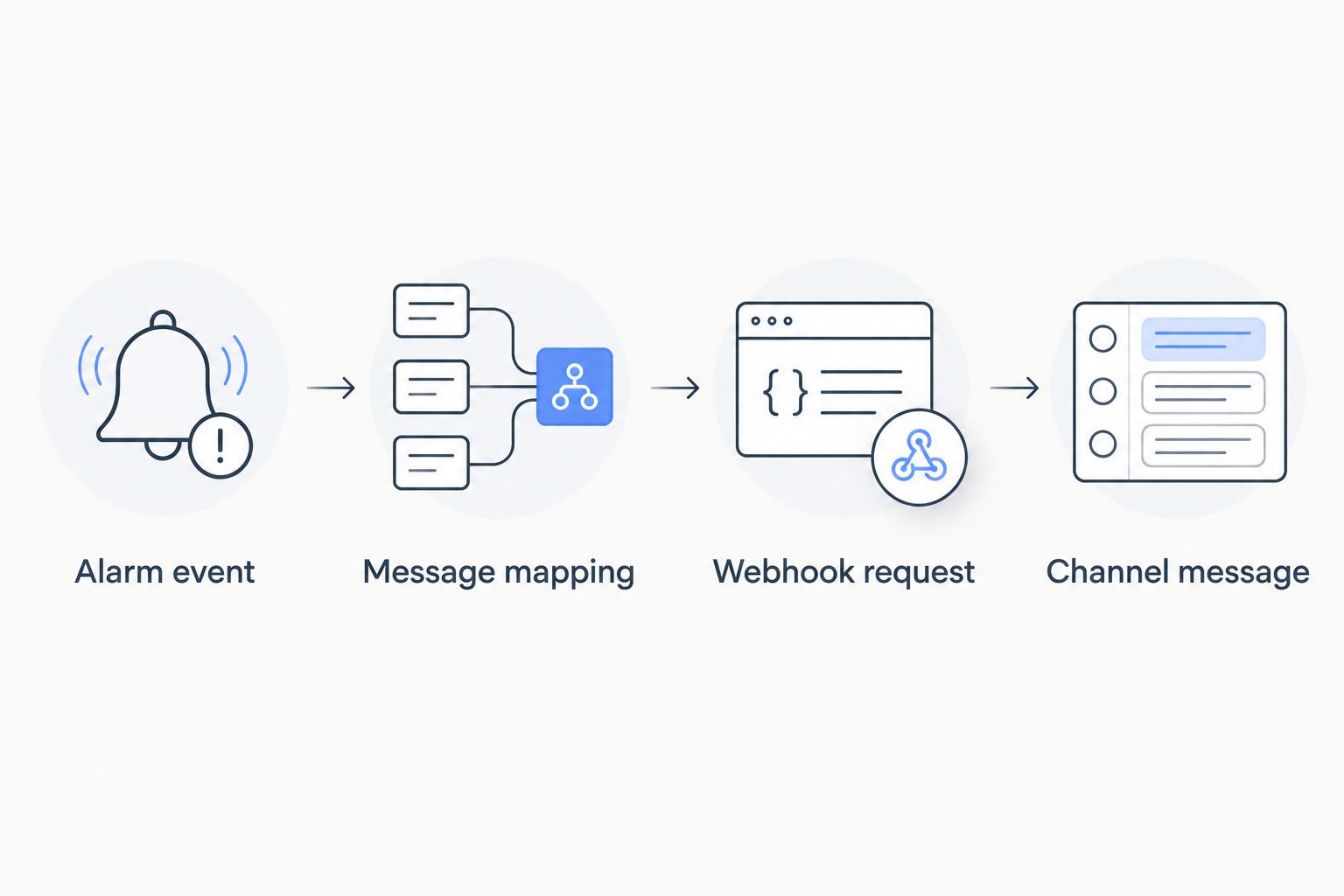
The logical sequence is Alarm event, Message mapping, Webhook request, and Channel message. A relay belongs between the source and destination when transformation or delivery controls require it.
End-to-end alarm testing
Test the receiving endpoint first, then the event path. Otherwise, a missing message leaves you guessing whether the problem is the alarm condition, source integration, transport, or chat workflow.
- Receiver test: Submit a clearly labeled test message directly to the destination. Confirm the intended channel, readable formatting, and correct identity of the posting integration.
- Source test: Generate a controlled test alarm using an approved method. Avoid changing live equipment merely to produce a notification.
- Correlation test: Match the source alarm reference to the integration record and visible message. Verify timestamps and units rather than checking only that some message appeared.
- Failure test: Exercise the integration's error handling in a controlled environment. Confirm that a rejected request becomes a visible delivery failure rather than silently disappearing.
- Ownership test: Have the responsible responder explain what action the message requests and where the authoritative alarm state lives.
Expected result: You have evidence that the intended alarm—not just a manually submitted message—reaches the intended channel. Record what was tested and distinguish successful delivery from successful incident response.
Send a recovery message when the alarm clears
A useful adjacent workflow posts a recovery notification after the source reports that the alarm has cleared. Implement this only when the documented integration exposes that transition or an authorized integration service can establish it from the authoritative alarm state.
Reuse the original alarm reference, label the message as recovery, and include the relevant event time. Keep recovery separate from acknowledgment: a person acknowledging a problem does not establish that the monitored condition returned to normal.
Do not infer recovery from silence. A device that stops reporting has not demonstrated a healthy measurement, and an inactive chat conversation says nothing about equipment state.
Where supported, a threaded update can keep the conversation together, but that requires the appropriate destination API and message identifiers. Do not assume an incoming webhook provides a complete message-update or incident-management interface.
Webhook troubleshooting
The request succeeds, but no message appears
Check the actual destination and, for Teams, the workflow run and posting action. Acceptance at the trigger does not prove that a downstream posting action completed successfully.
The receiver rejects the JSON
Validate the request body and Content-Type, then compare the payload with the receiving interface. Start with plain text and add formatting only after the minimal request works; source alarm JSON is not automatically a chat message schema.
Authentication fails
Compare the caller's credentials with the receiver's permitted authentication method. An HTTP 401 or 403 response calls for an authentication or authorization investigation, not repeated delivery attempts with the same configuration.
The channel fills with repeated alarms
Determine whether the source emits repeated events, the integration retries deliveries, or the condition repeatedly changes state. Apply event filtering and duplicate handling at the appropriate layer; do not suppress distinct alarms merely because they concern the same device.
Delivery stops after an ownership change
Inspect app authorization, workflow ownership, connection credentials, and endpoint changes. Assign ongoing maintenance responsibility so the integration does not depend on an unexplained personal connection.
Expand routing without adding alarm noise
Once delivery works, route messages by site, asset group, or severity using fields the source actually supplies. Put the routing decision in an explicit configuration rather than burying it inside message text.
For Kilo alarm workflows, preserve the distinction between monitoring, notification, and control. Sending a message does not authorize equipment actions, and a chat reaction should not be treated as a device command without a separately designed, permission-controlled integration.
Before adding more destinations, address repeated events and unstable conditions. The guide to reducing false alarms in industrial IoT alert systems covers the related alarm-quality problem.
FAQ
Can I send IoT alarms to Slack or Teams by pasting in a webhook URL?
Only when the sending integration supports the receiver's authentication and payload format. Otherwise, use a relay or receiving workflow to transform the event and complete delivery.
Does this require a native Kilo Slack or Microsoft Teams connector?
No native connector should be assumed for this design. Establish a documented alarm-event output or supported API-based integration, then connect it to the chosen chat receiver.
Can Slack and Teams receive the same alarm payload?
Not automatically. Slack incoming webhooks accept Slack message payloads, while a Teams workflow must process the input and posting format configured for that workflow.
Does a posted channel message mean someone acknowledged the alarm?
No. Channel delivery, human acknowledgment, platform acknowledgment, and physical recovery are separate events and need separate evidence.
Should webhook URLs be treated as passwords?
Treat webhook URLs as secrets. Restrict access, avoid logging them, and replace an exposed endpoint or credential using the destination's supported process.
Can I send a message when an alarm clears?
Yes, when the documented source integration exposes the cleared state or an authorized integration service establishes it from the authoritative alarm record. Correlate the recovery message with the original alarm and do not infer recovery from missing data.
Test the missing-message case before relying on chat
A successful alarm test proves delivery worked once; it does not prove you'll notice when delivery breaks. Give someone responsibility for integration health and define how failed deliveries become visible outside the failing channel. That operational decision matters as much as the message format.
Written by Tim Kravchunovsky