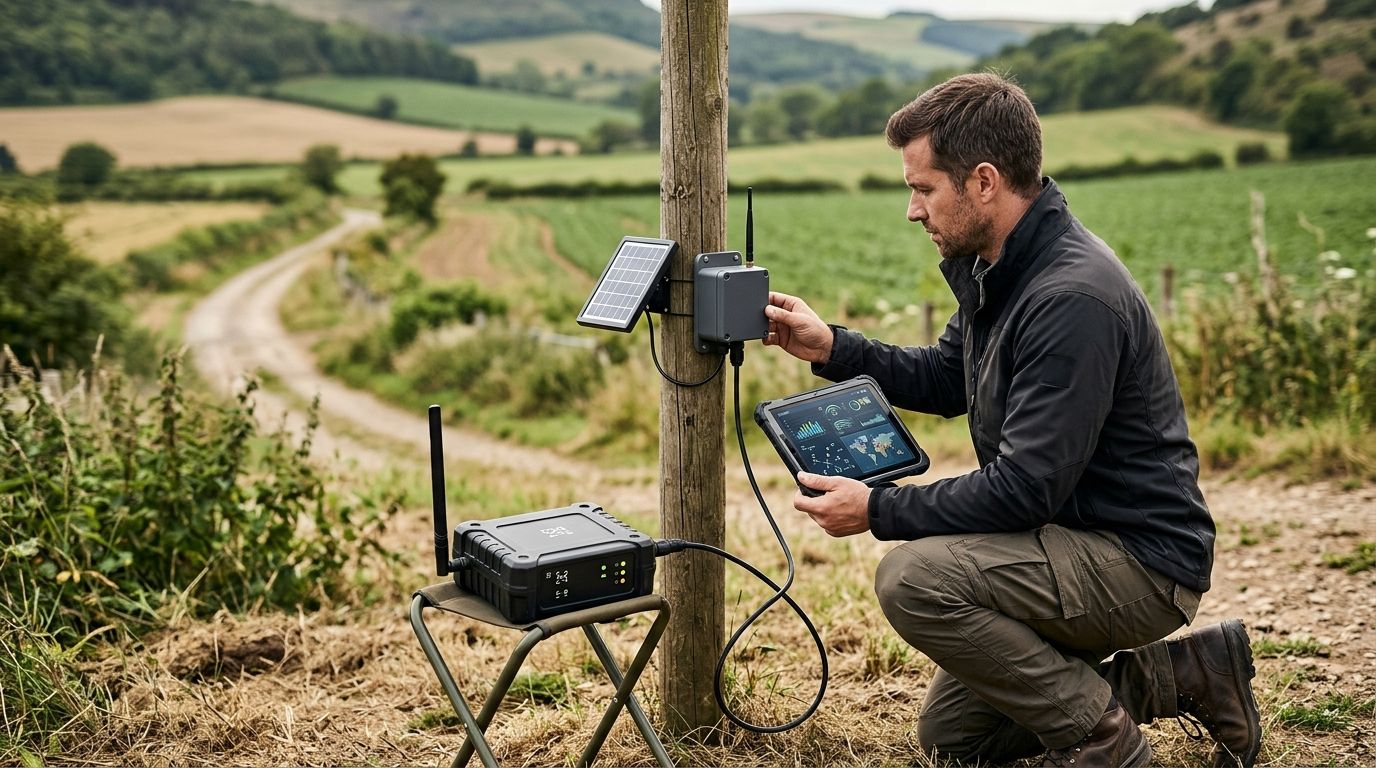
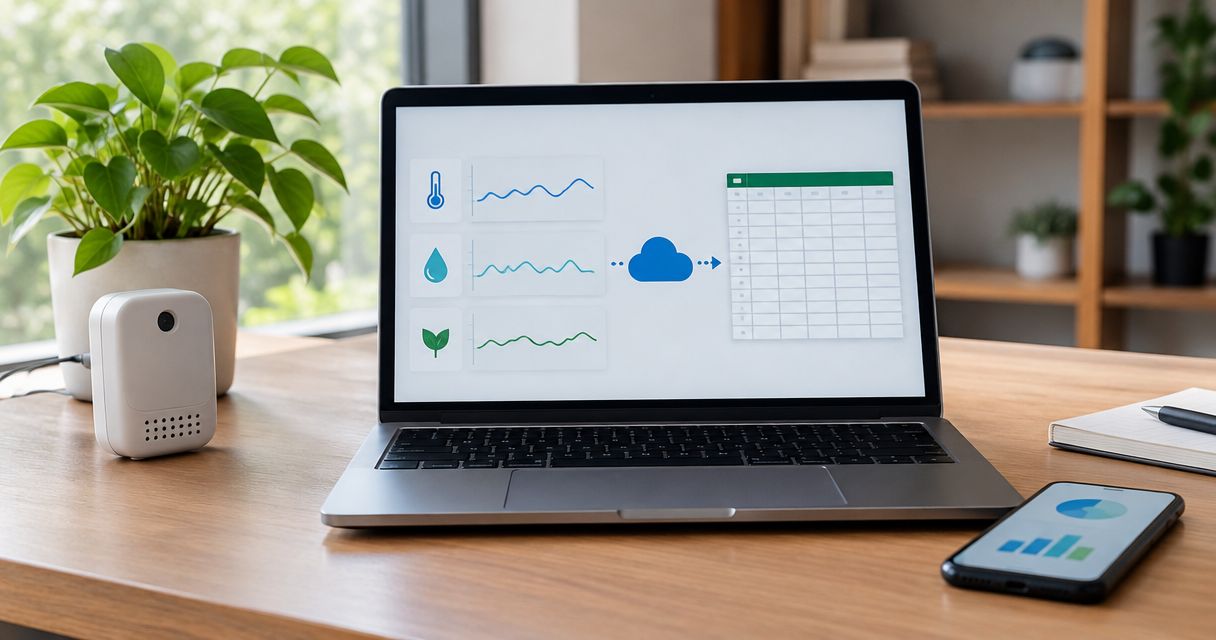
Yes—you can export IoT sensor data to a spreadsheet automatically by scheduling a data retrieval job or sending incoming readings through an integration that writes spreadsheet rows. An IoT platform supplies the connected-device context; the export workflow still needs authorized data access, field mapping, and a supported connection to your spreadsheet. Automatic delivery also needs duplicate handling and failure alerts, or a report can look current while silently missing readings.
- To export IoT sensor data to spreadsheet automatically, connect authorized telemetry access to a scheduled or event-driven writer.
- Google Sheets suits shared reporting; Excel suits workbook analysis. Both need a maintained integration.
- Keep timestamps, device identifiers, measurement names, values, and units together.
- Use spreadsheets for reporting, while retaining source measurements outside the workbook.
Can you export iot sensor data to a spreadsheet automatically?
Yes. The essential workflow is to retrieve readings, normalize them into rows, write those rows, and record what was successfully delivered. You can run that workflow on a schedule or trigger it when a supported source publishes new measurements.
A downloaded CSV file is different. It becomes an automated workflow only when something generates, delivers, and refreshes it without a person repeating the export.
| Export method | Best for | Main advantage | Main limitation |
|---|---|---|---|
| Scheduled retrieval | Periodic reports and historical backfills | You can request defined time windows and reconcile results | Reports update only when the job runs |
| Event-driven writes | Reporting that needs incoming readings promptly | New events can trigger delivery without waiting for a scheduled retrieval | Retries, duplicate events, and ordering need explicit handling |
| Scheduled file delivery | Recurring snapshots and file-based analysis | Each export can preserve a defined reporting period | Delivering a file does not automatically refresh an existing workbook |
Start with the reporting decision. If someone reviews yesterday's measurements, scheduled retrieval is a sensible starting point. If someone needs to see incoming readings during the working day, investigate event-driven delivery—but keep operational alarms separate from the spreadsheet.
What must happen between a sensor reading and a spreadsheet row?
A sensor payload isn't necessarily ready for a workbook. It can contain encoded measurements, device-specific field names, or timestamps that represent receipt rather than the moment of measurement.
Your integration needs a clear data contract: an agreed description of what each exported field means. That contract prevents a device replacement or payload change from quietly changing the interpretation of your report.
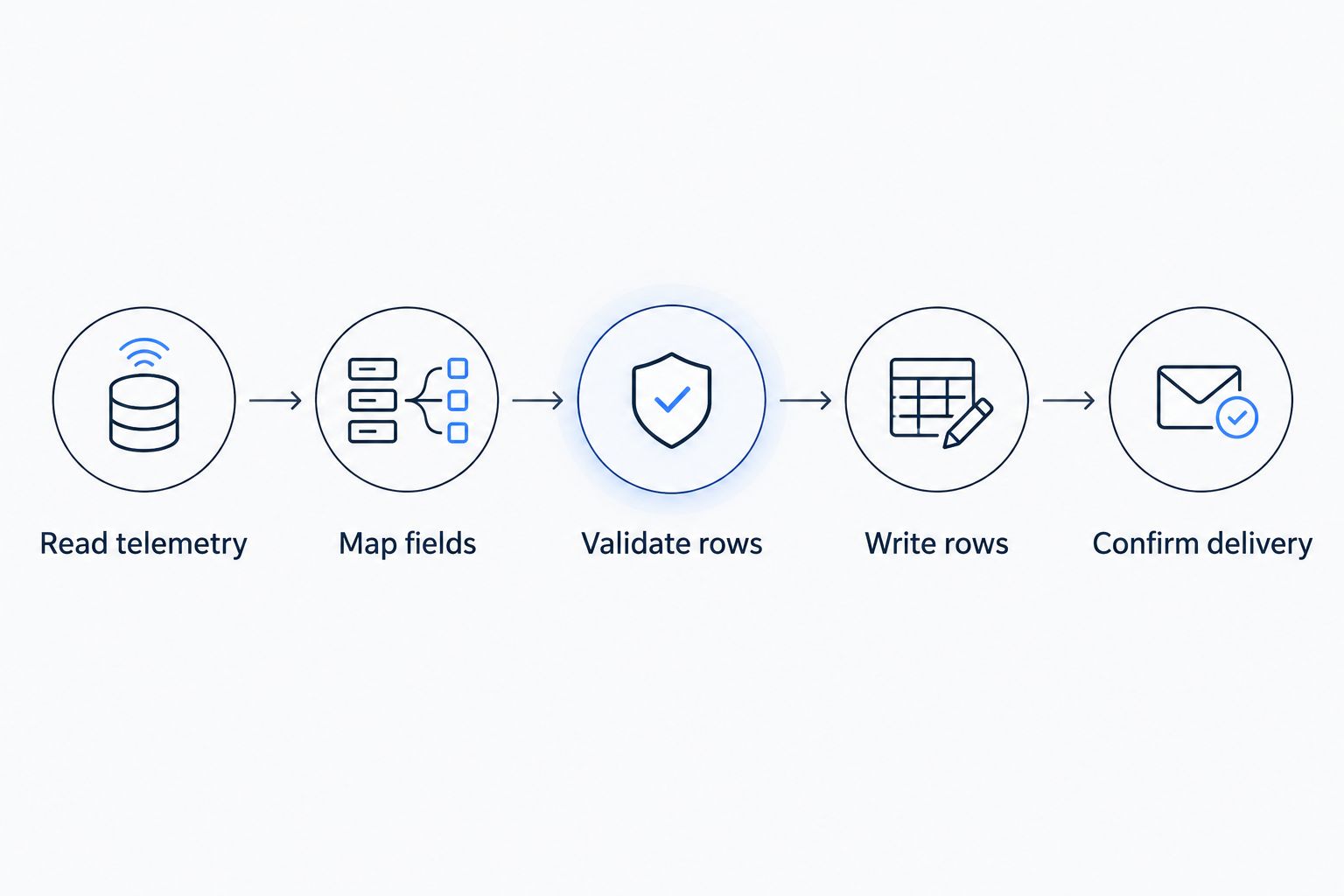
- Read telemetry. Obtain measurements through the source's documented, authorized interface. Confirm whether it exposes historical readings, incoming events, or both.
- Map fields. Convert the available data into consistent column names and explicit units. Preserve the original device identifier.
- Validate rows. Reject or flag malformed timestamps, missing identifiers, and unexpected value types rather than silently guessing.
- Write rows. Send validated records to the chosen spreadsheet or export file using its supported interface.
- Confirm delivery. Save a checkpoint only after the destination confirms the write, and alert the responsible person when delivery fails.
Keep ingestion and delivery timestamps separate when both are available. A reading collected earlier but uploaded after a connection outage belongs to its original measurement period, not necessarily the period when your export received it.
Scheduled retrieval: best for repeatable reports
Scheduled retrieval asks the source for measurements within a defined window, transforms the response, and writes the results. It suits reports where a predictable reporting period matters more than immediate updates.
The useful design choice is the checkpoint. Store the last successfully processed position outside the workbook's editable reporting area, and use it to decide where the next retrieval begins.
When the source supports pagination, retrieve every page before treating the window as complete. A successful response containing only part of the requested data is not a complete export.
Choose scheduled retrieval when you need controlled reporting windows and a practical way to backfill history. Its limitation is freshness: the spreadsheet cannot show readings that the next scheduled job has not retrieved.
Event-driven writes: best for incoming measurements
Event-driven delivery starts when a supported source emits an event. An integration receives that event, maps the measurements, and writes the destination rows.
This approach removes the wait for a scheduled retrieval. It doesn't remove processing delays, destination restrictions, or the need to recover from interrupted delivery.
Use a durable queue or another recoverable processing mechanism where the reporting requirement demands it. If the spreadsheet rejects a write, the event needs somewhere to wait rather than disappear.
Choose event-driven delivery when incoming readings need prompt visibility. Its limitation is operational complexity: an event can arrive more than once, arrive late, or fail partway through processing.
Scheduled file delivery: best for reporting snapshots
An automated file export produces a defined dataset for a reporting period. A workbook can then import that file through a separately configured refresh workflow.
Keep the distinction clear. Generating a CSV, placing it in shared storage, and refreshing a workbook are separate operations, even when an integration coordinates them.
CSV stores tabular values, not workbook formulas, charts, or multiple worksheets. If your report depends on those features, keep the workbook template separate from the exported measurement file.
Choose scheduled files when you need a repeatable snapshot rather than a continuously growing worksheet. The drawback is version confusion unless filenames, reporting periods, and refresh ownership are explicit.
Which columns should an IoT spreadsheet contain?
Use a stable schema before adding charts. A useful starting point is a long-format table: each row represents a measurement rather than an entire device's changing collection of fields.
| Column | What it preserves | Why it matters |
|---|---|---|
| Measurement time | When the reading was taken, if supplied | Places the observation in the correct reporting period |
| Received time | When the source received it, if supplied | Helps identify delayed uploads |
| Device ID | Stable source identifier | Keeps renamed devices traceable |
| Site or asset | Relevant deployment context | Makes filtering and ownership clearer |
| Measurement | The property being measured | Distinguishes temperature, humidity, and other fields |
| Value and unit | Numeric observation and its meaning | Prevents incompatible measurements being mixed |
| Source record ID | Original event identifier, when available | Supports duplicate detection and investigation |
Keep identifiers as text. Spreadsheet type conversion can otherwise alter identifiers that resemble numbers or dates.
Protect the imported data area from routine edits and build summaries elsewhere in the workbook. That separation makes it easier to replace or repair imported rows without overwriting someone's analysis.
Why automatic export reliability varies
The spreadsheet connection is only part of the job. These factors determine whether the exported report stays useful:
- Source access: Historical queries and incoming-event interfaces solve different problems. The available interface determines the export design.
- Timestamp quality: Measurement time, receipt time, and local display time need distinct meanings.
- Payload consistency: Device models and firmware changes can introduce different field names or units.
- Delivery behavior: Retries require duplicate protection, while interrupted jobs require recoverable checkpoints.
- Destination restrictions: Spreadsheet size, request limits, and workbook complexity constrain the reporting design.
- Ownership and permissions: Expired credentials, changed sharing settings, and unowned integrations can interrupt delivery.
Assign someone to respond to export failures. A retry mechanism cannot repair revoked access or decide how to interpret an unfamiliar measurement field.
How do you prevent duplicate rows and missing readings?
Make retries safe before you automate the schedule. When a write succeeds but its acknowledgement is lost, retrying the same batch can insert the same measurements again.
Use the source record identifier as a duplicate key when it uniquely identifies the exported measurement. Otherwise, define a key from documented fields such as device identity, measurement identity, and source timestamp; confirm that combination actually distinguishes valid records.
Don't use the reading value alone. Identical consecutive measurements can be legitimate.
Late uploads need a separate policy. Where the source supports it, re-read an overlapping time window and reconcile records using the duplicate key, rather than assuming everything before the checkpoint has already arrived.
Also compare retrieved records with accepted destination records. A job that completed without crashing still needs evidence that its intended rows reached the report.
Where does Kilo fit in a spreadsheet export workflow?
The Kilo IoT Platform brings connected-device data, dashboards, automation, alarms, and permissions into a platform for building and operating IoT deployments. Spreadsheet delivery should sit downstream of that operational context, with its source access and destination writer defined explicitly.
Kilo is a fit for integrators who need an IoT platform for connected-device monitoring and automation. That platform role is distinct from claiming a particular native spreadsheet connector or a ready-made scheduled export.
For an export project, confirm the current documented data-access method, available fields, permissions, and historical-query behavior before choosing the integration. Those details determine what the spreadsheet can reliably contain.
The advantage of keeping reporting downstream is separation: workbook formulas don't have to become your device-management or alarm logic. The trade-off is that the export remains an integration you must configure, test, and maintain.
Hardware sourcing is separate again. Kilo Electronics is a separate online authorised dealer for compatible hardware serving individual and business buyers; purchasing hardware there is not an additional platform requirement.
What would a cold-room reporting workflow look like?
Consider an illustrative design, not a documented customer deployment. A facilities team wants a spreadsheet for reviewing cold-room temperature history while keeping operational alerts in its monitoring system.
The inputs are temperature readings, device identifiers, source timestamps, and room assignments. The integration retrieves the reporting window, maps the measurements into the agreed schema, checks for duplicates, and writes the accepted rows.
The facilities lead reviews the report. The integration owner responds if delivery fails or the source begins returning an unfamiliar field.
Evidence of a successful export includes the processed time window, accepted row count, delivery status, and reconciliation with the source. Evidence of acceptable storage conditions is a different question, requiring the relevant measurement quality and operational procedures.
The spreadsheet records observations. It does not establish sensor accuracy, guarantee safe storage, or prove compliance by itself.
FAQ
Can I send IoT readings to Google Sheets without writing code?
Yes, when a compatible integration service provides the required source connection and Google Sheets writing action. You still need to configure credentials, field mapping, retries, and duplicate handling.
Can Excel refresh sensor data while the workbook is closed?
Unattended refresh depends on the Excel environment and the automation you configure. An interactive workbook refresh is not proof that the same process will run successfully without a signed-in user.
Do I need AI to automate a sensor spreadsheet?
No. A scheduled job or event-driven integration can move measurements into a spreadsheet without AI reasoning.
Should my export replace missing readings with zero?
No, not unless zero is explicitly the correct meaning under your data contract. Preserve missing data as missing and distinguish it from a valid zero measurement.
Can I put API credentials in a shared worksheet?
Keep API credentials outside shared worksheet cells and use the integration environment's supported secret storage. Limit source access and destination permissions to what the export requires.
Can a spreadsheet replace my IoT alarm system?
Treat the spreadsheet as a reporting destination rather than assuming it replaces operational alarms. Export delays, failed refreshes, and workbook edits introduce separate failure paths.
Test a failed write before trusting the report
Before handing over the automation, deliberately test what happens when the destination refuses a write. Confirm that the job reports the failure, retains recoverable work, and resumes without inserting duplicate rows.
A dependable export is defined by how it recovers, not just by whether its first worksheet fills up. Give the report owner a visible last-successful-export status so an unchanged spreadsheet isn't mistaken for unchanged conditions.
Related guides
Written by Tim Kravchunovsky